
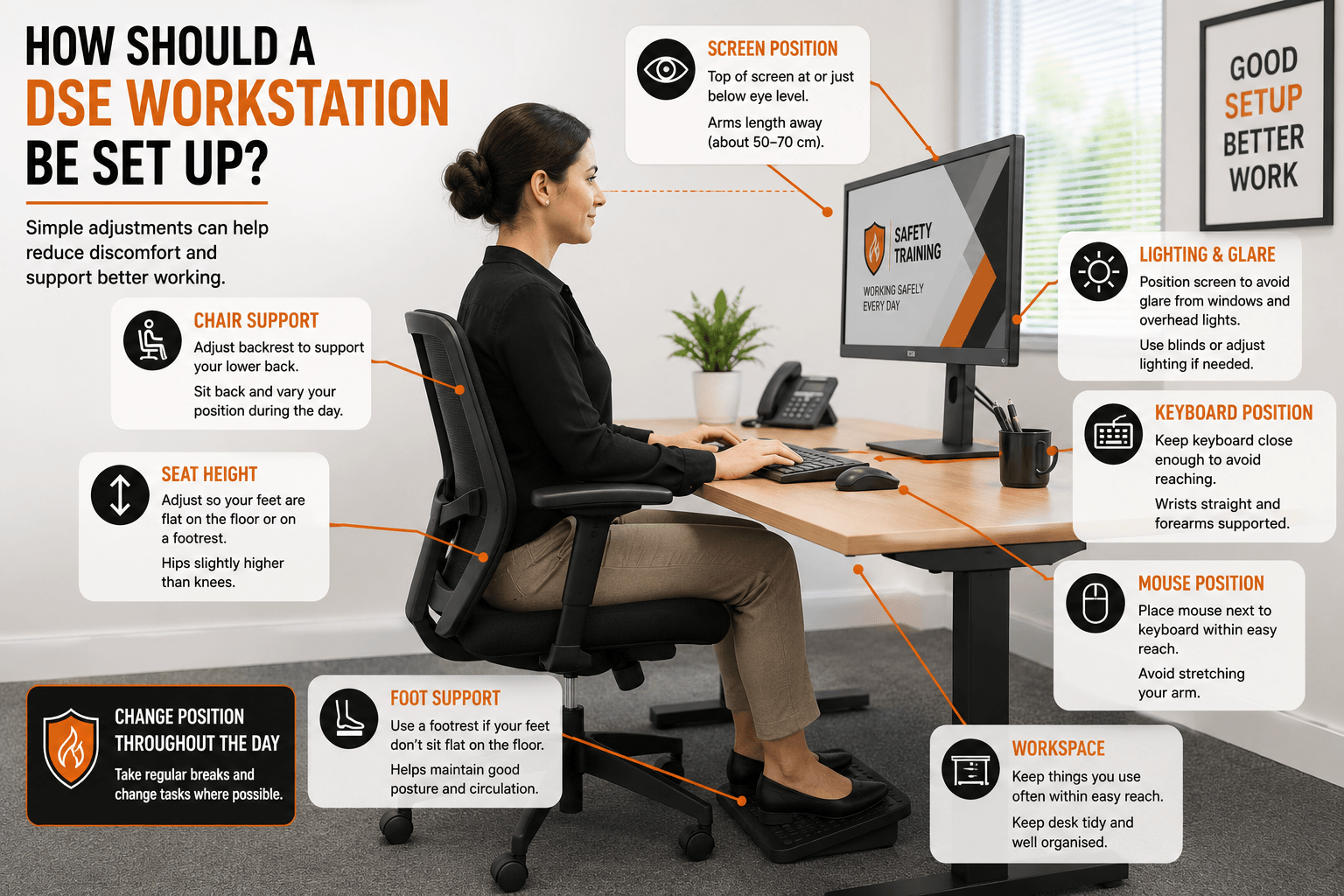
How Should a DSE Workstation Be Set Up? –
For millions of UK employees, a desk, computer and chair make up the workplace they use for much of the day.
It might seem relatively low risk compared with working on a construction site or operating machinery, but a poorly arranged workstation can contribute to discomfort and problems affecting the back, neck, shoulders, arms and hands.
This is why Display Screen Equipment (DSE) needs to be managed properly.
So, how should a DSE workstation be set up?
There isn’t one perfect position that will suit every employee. People vary in height, build and the work they perform. The aim is to provide a workstation that can be adjusted to suit the individual and encourage comfortable working practices.

Start With the Chair
The chair is one of the most important parts of a DSE workstation.
Employees should understand how to adjust it rather than simply accepting whatever position it was left in by the previous user.
A suitable chair should allow the employee to achieve a comfortable working position with appropriate support.
Things to consider include:
- Seat height.
- Backrest height and angle.
- Lower-back support.
- Ability to sit comfortably at the desk.
- Space to change position.
The employee’s feet should be suitably supported.
If adjusting the chair to the correct working height leaves someone’s feet unsupported, a footrest may be appropriate.
How High Should the Computer Screen Be?
Screen position is another important consideration.
A screen that is too low can encourage an employee to continually bend their neck downwards, while a screen positioned unnecessarily high may create a different uncomfortable posture.
The screen should generally be positioned so that the user can view it comfortably without repeatedly bending or twisting their neck.
The precise position will depend on the employee, screen size and workstation.
It should also be placed at a comfortable viewing distance.
The objective isn’t to achieve an exact measurement for every employee. It is to allow the individual to maintain a comfortable position while viewing their work.
Position the Screen Directly in Front of the User
For most tasks where the main screen is used continuously, positioning it directly in front of the employee can help avoid repeated twisting.
This becomes particularly important where an employee uses several screens.
Someone who spends most of their day working from one monitor but has it positioned substantially to one side may repeatedly turn their head and upper body.
Where two or more monitors are used, their positioning should reflect how frequently each screen is used.
What About the Keyboard?
Employees should have enough space to position the keyboard comfortably.
There should normally be room in front of the keyboard so the user isn’t forced to work with their arms in an awkward position.
The keyboard should allow the employee to maintain a comfortable posture without unnecessary reaching.
Workers should also avoid assuming that one fixed position must be maintained throughout the day.
Changing position periodically can be beneficial.
Where Should the Mouse Be Positioned?
The mouse or other pointing device should be within easy reach.
A common problem occurs when the mouse is positioned too far away, forcing the employee to repeatedly stretch their arm forward or sideways.
Frequently used equipment should generally be kept close enough to use comfortably.
The same principle applies to other items used throughout the working day.
Don’t Forget Desk Space
A cluttered desk can make good workstation positioning difficult.
Employees need sufficient space for the equipment and materials required to perform their work.
Frequently used items should be accessible without repeated excessive reaching.
Consider where items such as:
- Telephones.
- Documents.
- Notebooks.
- Calculators.
- Headsets.
- Other frequently used equipment.
are positioned.
Good workstation setup isn’t simply about the computer.
It is about arranging the complete working area.
Lighting and Glare
A workstation can be physically well arranged but still uncomfortable if lighting causes reflections or glare on the screen.
Employees should consider the position of:
- Windows.
- Overhead lighting.
- Desk lamps.
- Other bright light sources.
Where possible, screens should be positioned to reduce distracting reflections.
Window blinds or other appropriate measures may also help where daylight creates problems.
Employees should be able to adjust their screen so information remains clear and comfortable to view.
What About Laptop Users?
Laptops create a particular DSE challenge because the screen and keyboard are physically connected.
When the keyboard is positioned comfortably for typing, the screen can be too low.
If the laptop is raised to improve screen height, the keyboard becomes difficult to use.
For prolonged laptop use, additional equipment may therefore be appropriate.
Depending on the circumstances, this could include:
- A separate keyboard.
- A separate mouse.
- A laptop stand.
- A separate monitor.
This can allow the screen and input devices to be positioned independently.
Working From Home Doesn’t Remove DSE Responsibilities
Home working has made DSE workstation setup particularly relevant.
An employee might occasionally answer emails from a sofa or kitchen table, but these arrangements can become problematic when they effectively become a full-time workstation.
Home workers should consider the same basic principles as office-based employees.
They need suitable seating, appropriate equipment and sufficient space to work comfortably.
Employers should also ensure relevant DSE arrangements include employees who regularly work remotely.
What About Hybrid Workers?
Hybrid employees can use several different workstations during the same week.
They might work from home on Monday, use a hot desk on Tuesday and work at another office later in the week.
This makes understanding workstation adjustment especially important.
Rather than assuming every desk is already correctly configured, employees should know how to make basic adjustments when they change working location.
A chair that was perfectly adjusted for the previous user may be completely unsuitable for the next person.
Should Employees Stay in the ‘Perfect’ Posture All Day?
No workstation setup should encourage someone to remain completely static for hours.
Even a comfortable position can become uncomfortable when maintained for too long.
Employees should have opportunities to change position and periodically interrupt prolonged DSE activity with breaks or changes of task.
Good DSE practice therefore combines suitable workstation setup with sensible working habits.
What Is a DSE Assessment?
A DSE assessment considers the workstation, equipment, environment and the way the employee uses them.
It can help identify problems involving areas such as:
- Display screens.
- Keyboards.
- Pointing devices.
- Chairs.
- Desks and work surfaces.
- Working environment.
- Software.
- Working practices.
Where problems are identified, appropriate action can then be considered.
A DSE assessment shouldn’t simply become a form that is completed and forgotten.
It should help identify practical improvements.
When Should a Workstation Be Reassessed?
DSE arrangements may need reviewing when circumstances change.
Examples can include:
- Moving to a different workstation.
- Significant changes to equipment.
- Changing from office to home working.
- Changes to an employee’s work.
- An employee reporting discomfort.
- Significant changes to the workstation layout.
The important point is that a previously suitable assessment may no longer reflect the employee’s current working arrangements.
Why DSE Training Matters
An employer can provide an adjustable chair, suitable screen and well-designed desk, but employees still need to understand how to use them effectively.
DSE Training can help employees understand:
- How to adjust their workstation.
- Suitable chair positioning.
- Screen placement.
- Keyboard and mouse positioning.
- The importance of changing posture.
- Breaks and changes of activity.
- Lighting and glare.
- How to recognise and report problems.
This is particularly useful in workplaces using hot desks or hybrid working, where employees may regularly need to adjust different workstations themselves.
Flexible DSE Training for UK Businesses
Businesses often need to provide DSE Training to employees at different times, particularly when new starters join or working arrangements change.
DSE Training supplied on USB provides a reusable resource for delivering training in-house.
The USB contains training videos, question and answer test sheets, certificate templates and training record templates. It can be accessed using a compatible PC, laptop or Mac and reused whenever additional employees require training.
Online DSE Training provides another option for individual employees and can be particularly convenient for businesses with remote or hybrid workers.

Final Thoughts
Setting up a DSE workstation correctly isn’t about forcing every employee into one supposedly perfect position.
It is about giving people suitable equipment and helping them adjust their working environment to suit their individual needs.
Chair adjustment, screen positioning, keyboard and mouse placement, desk space, lighting and working habits all contribute to the overall setup.
Employees also need to understand that a workstation can require readjustment when they move desks, change equipment or work from another location.
Good DSE Training helps turn workstation setup from something employees simply accept into something they understand how to adjust and manage themselves.
